What is Tooth Explorer 3D?
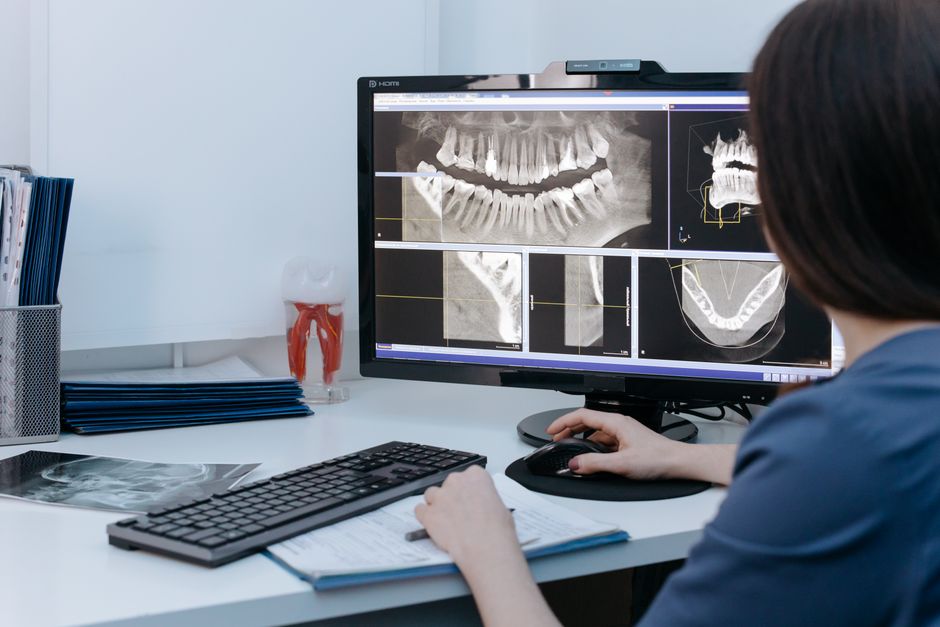
Tooth Explorer 3D is a cutting-edge educational tool designed to provide dental students and professionals with an immersive and interactive learning experience. This innovative software allows users to explore the anatomy of teeth in 3D, making it easier to understand complex dental structures and relationships.
Main Features of Tooth Explorer 3D
Tooth Explorer 3D boasts a range of features that make it an indispensable tool for dental education and visualization. These include:
- Interactive 3D models of teeth and surrounding tissues
- Realistic simulations of dental procedures and treatments
- Customizable and annotatable models for personalized learning
- Integration with popular dental software and tools
Benefits of Using Tooth Explorer 3D
The use of Tooth Explorer 3D offers numerous benefits for dental students and professionals, including:
- Enhanced understanding of dental anatomy and relationships
- Improved skills in diagnosis and treatment planning
- Increased confidence in performing complex dental procedures
- Personalized learning experience through customizable models
Why Does Tooth Explorer 3D Fail?
<h3 3d
While Tooth Explorer 3D is a powerful tool, it is not immune to issues. Some common problems that users may encounter include:
- Software crashes and freezes
- Difficulty loading or saving models
- Incompatibility with certain hardware or software configurations
- Limited customer support or documentation
<h3 3d
If you encounter issues with Tooth Explorer 3D, there are several troubleshooting steps you can take to resolve the problem. These include:
- Checking for software updates and patches
- Verifying system requirements and compatibility
- Seeking assistance from customer support or online forums
- Restoring previous versions or backups of models
Restore Testing Plan for Critical Clinic Files
<h3 and="" backup="" data="" h3="" importance="" of="" recovery
In a clinical setting, data loss or corruption can have serious consequences. To mitigate this risk, it is essential to implement a robust data backup and recovery plan. This includes:
- Regularly backing up critical files and data
- Verifying the integrity and completeness of backups
- Testing restore procedures to ensure data recovery
- Documenting backup and recovery protocols
<h3 and="" backup="" best="" data="" for="" h3="" practices="" recovery
To ensure the security and integrity of critical clinic files, follow these best practices for data backup and recovery:
- Use a combination of local and cloud-based backup solutions
- Implement encryption and access controls for sensitive data
- Regularly test and verify backup and recovery procedures
- Train staff on data backup and recovery protocols
Download Tooth Explorer 3D Free
<h3 and="" availability="" h3="" requirements
Tooth Explorer 3D is available for download from the official Dents-soft website. System requirements include:
- Windows 10 or later
- Intel Core i5 or AMD equivalent processor
- 8 GB RAM or more
- DirectX 11 compatible graphics card
<h3 activation
Once you have downloaded Tooth Explorer 3D, follow these steps to install and activate the software:
- Run the installation executable and follow the prompts
- Enter your license key or activation code
- Configure your software settings and preferences
- Launch the software and start exploring
Tooth Explorer 3D vs Free Dental Tools
<h3 and="" benefits
While there are many free dental tools available, Tooth Explorer 3D offers a range of features and benefits that set it apart from the competition. These include:
- Advanced 3D modeling and simulation capabilities
- Customizable and annotatable models for personalized learning
- Integration with popular dental software and tools
- Robust customer support and documentation
<h3 and="" cons="" dental="" free="" h3="" of="" pros="" tools
While free dental tools may offer some benefits, they also have some limitations and drawbacks. These include:
- Limited features and functionality
- Poor compatibility with certain hardware or software configurations
- Limited customer support or documentation
- Risk of data loss or corruption
Frequently Asked Questions
<h3 and="" answers
Here are some common questions and answers about Tooth Explorer 3D:
- Q: Is Tooth Explorer 3D compatible with my operating system?
- A: Yes, Tooth Explorer 3D is compatible with Windows 10 or later.
- Q: Can I use Tooth Explorer 3D on a Mac?
- A: No, Tooth Explorer 3D is currently only available for Windows.
- Q: How do I restore my data in case of a crash or corruption?
- A: To restore your data, follow the steps outlined in the restore testing plan for critical clinic files.