What is SimPlant Demo Viewer?
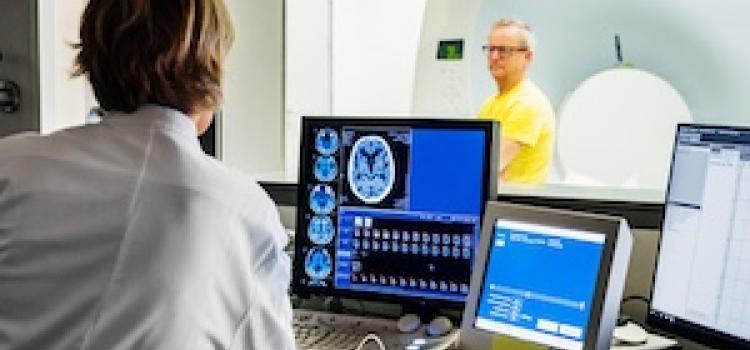
SimPlant Demo Viewer is a cutting-edge software solution designed for 3D visualization, implantology, and surgery. It is a demonstration version of the full SimPlant software, allowing users to explore its features and capabilities before committing to a full purchase. The SimPlant Demo Viewer is ideal for dental professionals, researchers, and students looking to gain hands-on experience with advanced 3D visualization and planning tools.
Main Features
The SimPlant Demo Viewer offers a range of innovative features, including 3D model visualization, implant planning, and surgical guide design. Users can import and export various file formats, such as STL, OBJ, and DICOM, and take advantage of advanced tools for measuring, marking, and annotating 3D models.
Installation Guide
System Requirements
Before installing the SimPlant Demo Viewer, ensure your computer meets the minimum system requirements, including a 64-bit operating system, 8 GB of RAM, and a dedicated graphics card.
Download and Installation
To download the SimPlant Demo Viewer, visit the official Dents-soft website and follow the prompts to initiate the download process. Once the download is complete, run the installer and follow the on-screen instructions to complete the installation.
Technical Specifications
Software Requirements
| Operating System | Windows 10 (64-bit) or later |
|---|---|
| Processor | Intel Core i5 or AMD equivalent |
| Memory | 8 GB RAM or more |
| Graphics Card | NVIDIA GeForce GTX 1060 or AMD equivalent |
File Compatibility
The SimPlant Demo Viewer supports a range of file formats, including STL, OBJ, and DICOM.
Pros and Cons
Advantages
- Advanced 3D visualization and planning tools
- Support for various file formats
- Intuitive user interface
- Free to download and use
Disadvantages
- Limited functionality compared to full SimPlant software
- Requires a dedicated graphics card
- May require additional system resources
FAQ
How to Recover a Project in SimPlant Demo Viewer
If you encounter issues with a project in the SimPlant Demo Viewer, try the following steps: restart the software, check for updates, and ensure you have saved your project regularly.
Data Protection Checklist
To ensure the security and integrity of your data, follow these best practices:
- Use encryption to protect sensitive data
- Regularly back up your projects to a secure repository
- Use strong passwords and keep them confidential
Comparison with Free Dental Tools
While there are free dental tools available, the SimPlant Demo Viewer offers advanced features and capabilities that set it apart from other solutions.