What is OralPathSim?
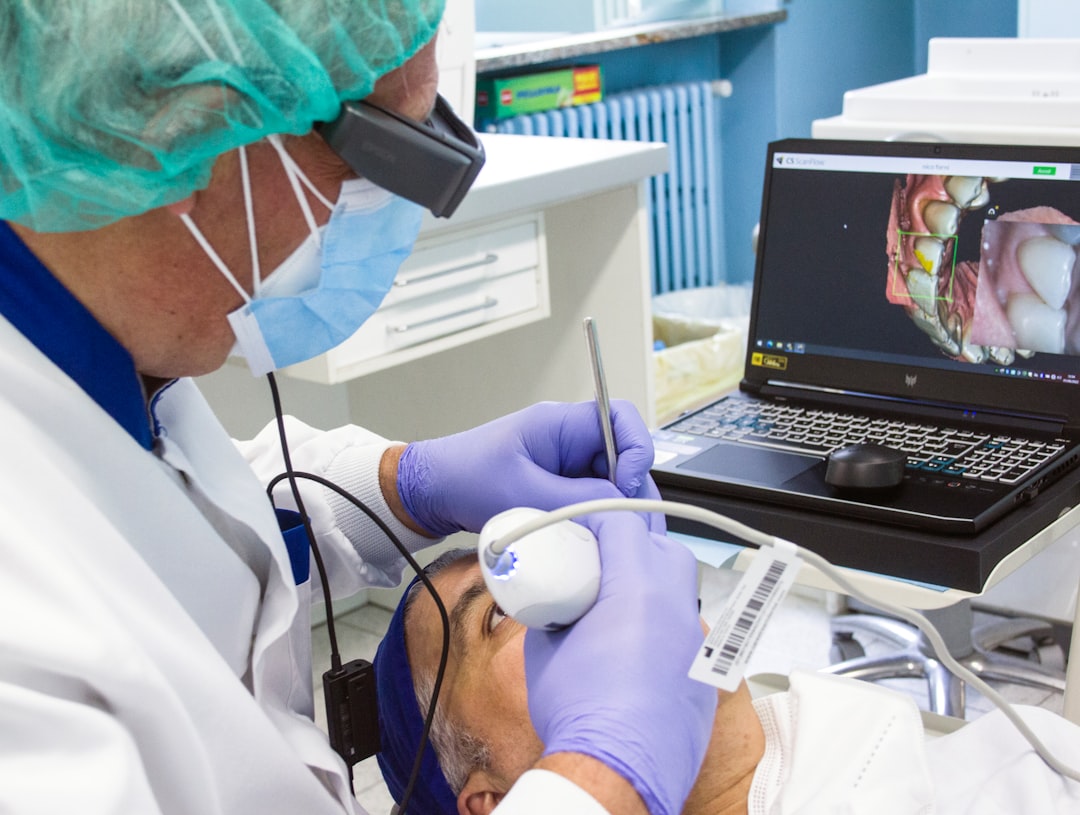
OralPathSim is a cutting-edge educational tool designed to simulate various oral pathology scenarios, providing dental students and professionals with a comprehensive and immersive learning experience. Developed by Dents-soft, OralPathSim is part of the Education and Visual Materials category, aiming to enhance the understanding and diagnosis of oral diseases.
Key Features of OralPathSim
Main Features
OralPathSim boasts an array of innovative features, including:
- Realistic Simulations: OralPathSim offers realistic and interactive simulations of various oral pathology cases, allowing users to explore and learn from different scenarios.
- Personalized Learning: The software enables users to create customized learning paths, tailored to their individual needs and goals.
- Collaboration Tools: OralPathSim facilitates collaboration among users, allowing them to share knowledge, discuss cases, and work together on projects.
Technical Specifications
To ensure seamless performance, OralPathSim requires:
- Operating System: Windows 10 or macOS High Sierra (or later)
- Processor: Intel Core i5 or AMD equivalent
- Memory: 8 GB RAM or more
- Storage: 256 GB available space or more
Installation Guide
Step-by-Step Installation
To install OralPathSim, follow these steps:
- Download the OralPathSim installer from the Dents-soft website.
- Run the installer and follow the prompts to select the installation location.
- Wait for the installation to complete.
- Launch OralPathSim and activate your license.
Troubleshooting Sync and Import Issues with Recovery
Common Issues and Solutions
If you encounter sync or import issues with OralPathSim, try the following:
- Check Internet Connection: Ensure your internet connection is stable and working properly.
- Verify License Activation: Confirm that your OralPathSim license is activated and valid.
- Restart the Application: Close and restart OralPathSim to resolve any temporary issues.
How to Export Data from OralPathSim
Exporting Data for Further Analysis
To export data from OralPathSim, follow these steps:
- Open OralPathSim and navigate to the desired case or scenario.
- Click on the