Monday – Friday 08.00 – 18.00

+1 (646) 555-7824

support@dents-soft.com

All-in-One

Tools for records, scheduling, billing, and more.

Free Access

Always updated dental software at no cost.

Easy Setup

Quick installation with our team’s support.

Tooth Explorer 3D

Tooth Explorer 3D

Google Rating 5.0
Based on 23k Reviews

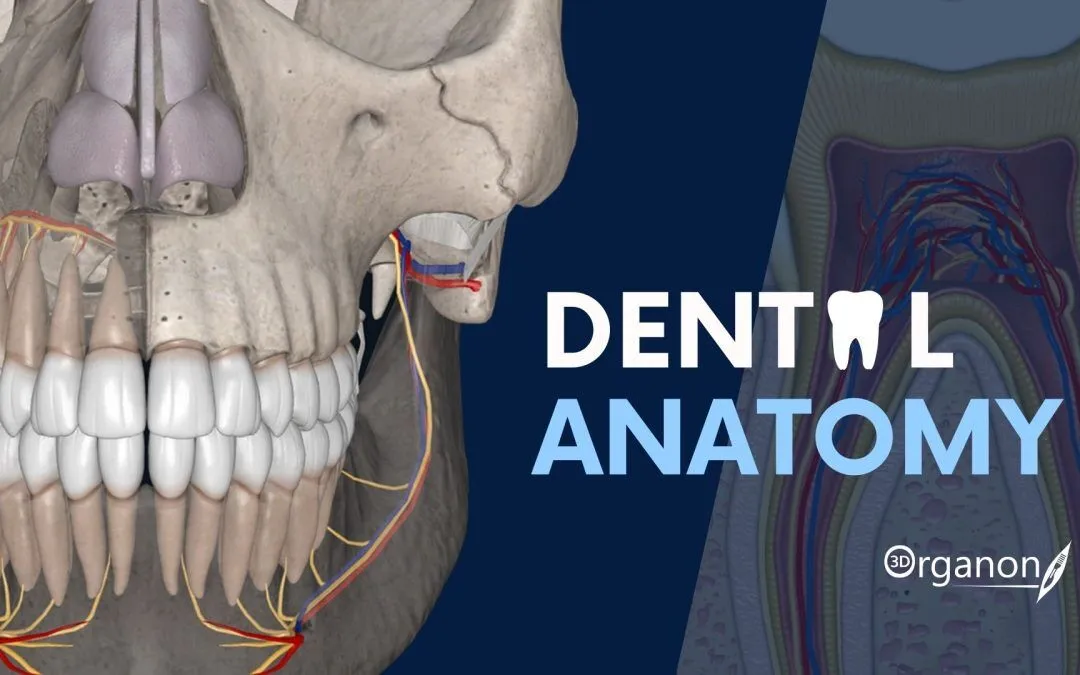
Tooth Explorer 3D — Interactive Dental Anatomy Platform Context Tooth Explorer 3D is a specialized visualization tool created to support dental education and clinical orientation. Unlike static atlases, it provides a fully interactive 3D environment where dental students and professionals can examine teeth, occlusion, and surrounding structures in detail. Its role is primarily academic, but it also helps clinics in patient communication by demonstrating morphology and treatment concepts in an ac

Tooth Explorer 3D — Interactive Dental Anatomy Platform

Context

Tooth Explorer 3D is a specialized visualization tool created to support dental education and clinical orientation. Unlike static atlases, it provides a fully interactive 3D environment where dental students and professionals can examine teeth, occlusion, and surrounding structures in detail. Its role is primarily academic, but it also helps clinics in patient communication by demonstrating morphology and treatment concepts in an accessible format. The tool is not a diagnostic system; rather, it is an aid for understanding spatial relations in dental anatomy.

Technical Profile

AreaDetails
PlatformWindows desktop; VR-ready configuration optional
Dental focusTooth morphology, occlusion, surface details, anatomical orientation
Core modules3D tooth library, rotation/zoom tools, annotation and labeling
InteropStandalone viewer; no direct PACS/EMR linkage
ImagingPredefined 3D datasets; not based on clinical DICOM scans
SecurityNo patient data; purely educational content
MultisiteDeployed in classrooms, labs, or standalone PCs
Backup/DRNot applicable; dataset is fixed
LicensingAcademic/free edition; commercial license adds extended models

Scenarios (Dental-Specific)

– A preclinical course uses Tooth Explorer 3D to let first-year students explore molars and premolars before wax modeling.
– A university anatomy lab installs the tool on multiple PCs, providing consistent access to the same dataset.
– A clinic applies it in patient consultations, showing 3D occlusion views to explain orthodontic or restorative treatment plans.

Workflow (Admin View)

1. Install the software on a Windows workstation or classroom PCs.
2. (Optional) Connect VR headsets for immersive interaction.
3. Load the included anatomy dataset.
4. Configure annotation sets and labeling for teaching consistency.
5. Provide user orientation sessions for navigation and zoom functions.
6. Keep installation images updated across multiple lab stations for uniform access.

Strengths / Weak Points

Strengths

High-quality 3D tooth models that aid spatial learning.

Low barrier to entry — fixed dataset, no complex setup.

Useful for both academic instruction and patient-facing explanations.

Optional VR mode adds engagement for classrooms and workshops.

Weak Points

No integration with PACS or real clinical imaging.

Dataset is static; cannot load patient-specific cases.

Requires capable hardware for smooth rendering, especially in VR mode.

Limited assessment features compared to commercial teaching suites.

Why It Matters

Dental education often struggles with bridging the gap between textbook diagrams and real clinical images. Tooth Explorer 3D provides an intermediate layer, offering students and practitioners a chance to examine morphology and occlusion in an interactive way. For institutions without access to more expensive VR platforms, it represents a practical, lightweight entry point into 3D dental anatomy teaching. In clinics, its role as a visualization aid can improve patient understanding and acceptance of proposed treatments.


Tooth Explorer 3D repository planning for clini | Dents-soft

What is Tooth Explorer 3D?

Tooth Explorer 3D is a cutting-edge educational software designed for dental professionals and students alike. This innovative program offers a comprehensive and interactive platform for exploring the intricacies of dental anatomy. With its robust features and user-friendly interface, Tooth Explorer 3D has become an indispensable tool in the field of dentistry, providing a unique learning experience that enhances understanding and retention.

Main Features and Benefits

Tooth Explorer 3D boasts an array of features that make it an essential resource for dental education. Some of its key features include:

  • Interactive 3D Models: Detailed and accurate three-dimensional models of teeth and surrounding structures allow for an immersive learning experience.
  • Customizable Views: Users can manipulate models to view them from various angles, enhancing comprehension of complex dental anatomy.
  • Virtual Dissection: The ability to virtually dissect models aids in understanding the relationships between different dental structures.

Installation Guide

System Requirements

Before installing Tooth Explorer 3D, ensure your system meets the minimum requirements:

RequirementSpecification
Operating SystemWindows 10 or macOS High Sierra (or later)
ProcessorIntel Core i5 or AMD equivalent
RAM8 GB or more
Graphics CardNVIDIA GeForce GTX 1060 or AMD Radeon RX 580

Installation Steps

Follow these steps to install Tooth Explorer 3D:

  1. Download the installation package from the official Dents-soft website.
  2. Run the installer and follow the prompts to select the installation directory.
  3. Agree to the terms and conditions, then proceed with the installation.
  4. Once installed, launch Tooth Explorer 3D and activate your license.

Troubleshooting Sync and Import Issues with Recovery

Common Issues and Solutions

Occasionally, users may encounter issues with syncing data or importing models. Here are some common problems and their solutions:

  • Syncing Issues: Ensure your internet connection is stable and try syncing again. If issues persist, check for software updates and reinstall if necessary.
  • Importing Models: Verify that the model is in a compatible format (.obj or.stl). If issues persist, try restarting the software or reinstalling it.

How to Export Data from Tooth Explorer 3D

Exporting Models and Annotations

To export data from Tooth Explorer 3D, follow these steps:

  1. Select the model or annotation you wish to export.
  2. Go to the ‘File’ menu and choose ‘Export’.
  3. Select the desired format (.obj,.stl, or.pdf) and choose a location to save the file.

Best Alternative to Tooth Explorer 3D

Evaluating Alternatives

While Tooth Explorer 3D is a leading educational software, other alternatives exist. When evaluating alternatives, consider factors such as:

  • Features and Functionality: Compare the features and functionality of the alternative software to Tooth Explorer 3D.
  • User Interface and Experience: Assess the user interface and overall learning experience offered by the alternative software.
  • Compatibility and System Requirements: Ensure the alternative software is compatible with your system and meets the necessary requirements.

Download Tooth Explorer 3D Free Trial

Experience Tooth Explorer 3D Before Committing

Before purchasing Tooth Explorer 3D, download the free trial version to experience its features and functionality firsthand:

Visit the Dents-soft website and navigate to the Tooth Explorer 3D product page.

Click on the ‘Free Trial’ button and fill out the registration form.

Once registered, you will receive an email with a download link and activation instructions.

FAQ

Frequently Asked Questions

Below are answers to some frequently asked questions about Tooth Explorer 3D:

  • Q: Is Tooth Explorer 3D compatible with my system?
    A: Refer to the system requirements listed in the installation guide.
  • Q: How do I troubleshoot syncing issues?
    A: Refer to the troubleshooting section for syncing issues.

Tooth Explorer 3D encryption and retention chec | Dents-soft

What is Tooth Explorer 3D?

Tooth Explorer 3D is an innovative educational tool designed for the dental industry, falling under the category of Education and Visual Materials. This powerful software utilizes a REST API, enabling seamless integration and data exchange. Tooth Explorer 3D is specifically tailored to enhance dental education, providing a comprehensive platform for students, educators, and professionals alike to explore and learn about dental anatomy in a highly interactive 3D environment.

Main Features of Tooth Explorer 3D

Tooth Explorer 3D boasts an array of features that make it a standout in dental education. One of its key strengths is its ability to import files, allowing users to work with a wide range of dental models and simulations. Additionally, it offers an offline repository setup, ensuring resilient backups and minimal data loss. This feature is particularly beneficial for institutions and clinics, where data security and accessibility are paramount.

Installation Guide for Tooth Explorer 3D

Step 1: Downloading Tooth Explorer 3D

The first step in getting started with Tooth Explorer 3D is to download the software. The download process is straightforward and can be completed in a few simple steps. Users can download Tooth Explorer 3D free from the official Dents-soft website or through authorized distributors.

Step 2: Installation

Once the download is complete, users can proceed to install Tooth Explorer 3D. The installation process is guided by a user-friendly interface that walks users through each step, ensuring a smooth setup experience. It’s essential to follow the installation instructions carefully to avoid any potential issues.

Technical Specifications of Tooth Explorer 3D

System Requirements

To run Tooth Explorer 3D efficiently, users need to ensure their system meets the minimum technical specifications. These include a robust processor, sufficient RAM, and a high-quality graphics card. Meeting these requirements ensures a seamless user experience and optimal performance of the software.

Data Encryption and Retention

Tooth Explorer 3D prioritizes data security, incorporating advanced encryption methods to protect user data. This feature is particularly important for clinics and educational institutions, where sensitive patient and student information is stored. The software also offers a robust data retention policy, ensuring that all data is safely backed up and easily recoverable in case of any system failure.

Pros and Cons of Using Tooth Explorer 3D

Advantages

  • Enhanced Learning Experience: Tooth Explorer 3D offers a highly interactive and immersive learning environment, making dental education more engaging and effective.
  • Advanced Data Security: The software’s robust encryption and retention policies provide peace of mind for users, knowing their data is secure and backed up.

Disadvantages

  • System Requirements: Tooth Explorer 3D requires a powerful system to run efficiently, which can be a drawback for users with lower-end hardware.
  • Cost: While users can download Tooth Explorer 3D free, some advanced features may require a subscription or a one-time payment.

FAQs About Tooth Explorer 3D

How to Import Files into Tooth Explorer 3D?

Importing files into Tooth Explorer 3D is a straightforward process. Users can import dental models and simulations by navigating to the ‘File’ menu and selecting ‘Import.’ The software supports a wide range of file formats, making it versatile and user-friendly.

How Does Tooth Explorer 3D Compare to OpenEMR?

Tooth Explorer 3D and OpenEMR are both designed for the dental industry but serve different purposes. Tooth Explorer 3D is primarily an educational tool, focusing on interactive 3D learning experiences, while OpenEMR is a comprehensive electronic health record system. The choice between the two depends on the specific needs of the user or institution.

Tooth Explorer 3D secure data handling overview | Dents-soft

What is Tooth Explorer 3D?

Tooth Explorer 3D is a cutting-edge educational software designed for dental professionals and students to explore the intricacies of tooth anatomy in a highly interactive and immersive 3D environment. Developed by Dents-soft, this innovative tool aims to revolutionize the way dental education is delivered, making complex concepts more engaging and easier to understand.

Main Features of Tooth Explorer 3D

Tooth Explorer 3D boasts an array of features that set it apart as a premier educational resource in the field of dentistry. These include:

  • Highly Detailed 3D Models: Offering unparalleled detail, the 3D models within Tooth Explorer 3D allow users to explore every aspect of tooth anatomy, from the enamel to the pulp cavity, in exquisite detail.
  • Interactive Exploration: Users can rotate, zoom, and dissect the 3D models to gain a deeper understanding of tooth structure and its relevance to various dental procedures.
  • Realistic Simulations: The software provides realistic simulations of dental procedures, allowing students and professionals to practice and refine their skills in a safe and controlled environment.

Installation Guide for Tooth Explorer 3D

System Requirements

Before installing Tooth Explorer 3D, ensure your system meets the following requirements:

  • Operating System: Windows 10 or macOS High Sierra and later versions.
  • Processor: Intel Core i5 or AMD equivalent.
  • Memory: 8 GB RAM or more.
  • Graphics: NVIDIA GeForce GTX 1060 or AMD Radeon RX 580.

Step-by-Step Installation

Follow these steps to install Tooth Explorer 3D:

  1. Download the Installer: Visit the Dents-soft website to download the Tooth Explorer 3D installer.
  2. Run the Installer: Once downloaded, run the installer and follow the on-screen instructions.
  3. License Agreement: Read and agree to the license agreement.
  4. Installation Location: Choose the installation location and click ‘Next’.
  5. Installation: The installation process will begin. Wait for it to complete.
  6. Launch Tooth Explorer 3D: Once installed, you can launch Tooth Explorer 3D from the Start menu or the installation location.

Technical Specifications of Tooth Explorer 3D

Software Details

SpecificationDetail
Version3.2
Release DateJanuary 2023
CompatibilityWindows 10, macOS High Sierra and later
Language SupportEnglish, Spanish, French, German, Italian

System Compatibility

Tooth Explorer 3D is designed to be compatible with a wide range of systems, ensuring that it can be used in various educational and professional settings.

Pros and Cons of Using Tooth Explorer 3D

Advantages

The use of Tooth Explorer 3D in dental education and practice offers several benefits, including:

  • Enhanced Learning Experience: Interactive 3D models enhance student engagement and understanding of complex dental concepts.
  • Improved Skill Development: Realistic simulations allow for the practice and refinement of dental procedures in a safe environment.
  • Cost-Effective: Reduces the need for physical models and specimens, making it a cost-effective solution for educational institutions and dental practices.

Disadvantages

While Tooth Explorer 3D offers numerous advantages, there are also some potential drawbacks to consider:

  • Steep Learning Curve: The software’s advanced features and interactive nature may require time for users to become fully proficient.
  • Technical Issues: As with any software, technical issues such as bugs or compatibility problems may arise, potentially disrupting the learning or practice experience.

FAQs About Tooth Explorer 3D

Frequently Asked Questions

Below are answers to some of the most frequently asked questions about Tooth Explorer 3D:

Q: Is Tooth Explorer 3D suitable for all levels of dental education?

A: Yes, Tooth Explorer 3D is designed to be versatile and can be used by students at various levels of dental education, from pre-clinical to advanced levels.

Q: Can Tooth Explorer 3D be used for patient education?

A: Yes, the software can be a valuable tool for patient education, allowing dentists to explain procedures and conditions in a clear and interactive way.

Q: Is Tooth Explorer 3D compatible with my computer?

A: Check the system requirements provided earlier to ensure compatibility. If you’re still unsure, contact Dents-soft support for assistance.

Conclusion

Tooth Explorer 3D is a powerful educational tool that offers a unique and interactive way to explore tooth anatomy and practice dental procedures. With its advanced features, realistic simulations, and cost-effectiveness, it is an invaluable resource for dental education and practice. While it may present some challenges, the benefits of using Tooth Explorer 3D far outweigh the drawbacks, making it an essential addition to any dental educational institution or practice.

Tooth Explorer 3D repository planning for clini | Dents-soft

What is Tooth Explorer 3D?

Tooth Explorer 3D is an innovative educational software designed to revolutionize the way dental students and professionals learn and interact with dental anatomy. This cutting-edge tool provides an immersive 3D experience, allowing users to explore the intricacies of the human tooth in unprecedented detail.

Main Features

Tooth Explorer 3D boasts an array of features that make it an indispensable resource for dental education and practice. Some of its key features include:

  • Highly detailed 3D models of teeth and surrounding tissues
  • Interactive exploration and manipulation of tooth structures
  • Real-time rendering and simulation of various dental procedures
  • Comprehensive library of educational content and resources

Installation Guide

System Requirements

To ensure seamless installation and operation of Tooth Explorer 3D, your system should meet the following requirements:

ComponentMinimum Requirements
Operating SystemWindows 10 or macOS High Sierra (or later)
ProcessorIntel Core i5 or AMD equivalent
Memory8 GB RAM (16 GB recommended)
Graphics CardNVIDIA GeForce GTX 1060 or AMD Radeon RX 580

Step-by-Step Installation

Follow these steps to install Tooth Explorer 3D on your system:

  1. Download the installation package from the official website
  2. Run the installer and follow the prompts to select the installation location and options
  3. Wait for the installation to complete, which may take several minutes depending on your system’s specifications
  4. Launch Tooth Explorer 3D from the Start menu (Windows) or Applications folder (macOS)

Troubleshooting Sync and Import Issues with Recovery

Common Issues and Solutions

Some users may encounter issues with syncing and importing data in Tooth Explorer 3D. Here are some common problems and their solutions:

  • Data not syncing: Check your internet connection and ensure that the software is updated to the latest version
  • Importing issues: Verify that the file format is compatible with Tooth Explorer 3D and try re-importing the data
  • Recovery options: Use the built-in recovery tool or contact support for assistance with data recovery

Download Tooth Explorer 3D Free Trial

Experience the Power of Tooth Explorer 3D

Try before you buy! Download the free trial version of Tooth Explorer 3D to experience its features and benefits firsthand.

Tooth Explorer 3D vs Alternatives

Comparing Features and Benefits

How does Tooth Explorer 3D compare to other dental education software? Here’s a brief comparison:

FeatureTooth Explorer 3DAlternative 1Alternative 2
3D modeling and simulationHighly detailed and interactiveLimited detail and interactivityNo 3D modeling
Educational content and resourcesComprehensive library Limited resourcesNo educational content

FAQ

Frequently Asked Questions

Here are some frequently asked questions about Tooth Explorer 3D:

  • Q: What is the system requirements for Tooth Explorer 3D? A: Refer to the system requirements section above
  • Q: Can I use Tooth Explorer 3D on a Mac? A: Yes, Tooth Explorer 3D is compatible with macOS High Sierra (or later)
  • Q: How do I recover lost data? A: Use the built-in recovery tool or contact support for assistance

Tooth Explorer 3D troubleshooting exports and i | Dents-soft

What is Tooth Explorer 3D?

Tooth Explorer 3D is an innovative educational tool designed to enhance the learning experience for dental students and professionals. This cutting-edge software allows users to explore the anatomy of teeth in 3D, providing an immersive and interactive learning environment. With its advanced features and user-friendly interface, Tooth Explorer 3D has become a valuable resource for dental education and training.

Main Features

Tooth Explorer 3D offers a range of features that make it an essential tool for dental education. Some of its main features include:

  • 3D visualization of teeth and surrounding tissues
  • Interactive exploration of tooth anatomy
  • Realistic simulations of dental procedures
  • Personalized learning experiences with customizable settings

Installation Guide

System Requirements

Before installing Tooth Explorer 3D, ensure that your system meets the following requirements:

Operating SystemWindows 10 or macOS High Sierra (or later)
ProcessorIntel Core i5 or AMD equivalent
Memory8 GB RAM (16 GB recommended)
Graphics CardNVIDIA GeForce GTX 1060 or AMD Radeon RX 580 (or equivalent)

Step-by-Step Installation

Follow these steps to install Tooth Explorer 3D:

  1. Download the installation package from the official website.
  2. Run the installer and follow the prompts to select the installation location.
  3. Wait for the installation to complete.
  4. Launch Tooth Explorer 3D and activate your license.

Troubleshooting and Support

Common Issues

If you encounter any issues with Tooth Explorer 3D, refer to the following troubleshooting guide:

  • Check the system requirements to ensure your system meets the minimum specifications.
  • Restart the software and try again.
  • Check for updates and install the latest version.

Secure Records Guide

Tooth Explorer 3D prioritizes data security and provides features to ensure the safe storage of sensitive information. Follow these guidelines to secure your records:

  1. Use encrypted repositories to store sensitive data.
  2. Set up backup verification to ensure data integrity.
  3. Use secure login credentials and enable two-factor authentication.

Comparison with OpenEMR

Key Differences

Tooth Explorer 3D and OpenEMR are both popular tools in the dental education sector, but they have distinct differences:

FeatureTooth Explorer 3DOpenEMR
3D VisualizationAdvanced 3D visualization of teeth and surrounding tissuesLimited 2D visualization
Interactive ExplorationInteractive exploration of tooth anatomyNo interactive exploration
CustomizationPersonalized learning experiences with customizable settingsLimited customization options

FAQ

Frequently Asked Questions

Get answers to common questions about Tooth Explorer 3D:

  • Q: Is Tooth Explorer 3D compatible with my operating system?
  • A: Yes, Tooth Explorer 3D is compatible with Windows 10 and macOS High Sierra (or later).
  • Q: Can I download Tooth Explorer 3D for free?
  • A: Yes, you can download a free trial version of Tooth Explorer 3D. However, some features may be limited.

Tooth Explorer 3D secure data handling overview | Dents-soft — Update — Release Notes

What is Tooth Explorer 3D?

Tooth Explorer 3D is an innovative educational tool designed for dental professionals and students, offering an immersive and interactive 3D experience for exploring the anatomy of teeth. This cutting-edge software allows users to delve into the intricate details of tooth structures, facilitating a deeper understanding of dental anatomy and its implications for clinical practice. As a valuable resource in the field of Education and Visual Materials, Tooth Explorer 3D stands out for its ability to enhance learning outcomes and improve patient care.

Main Features and Benefits

The program boasts a range of features that make it an indispensable asset for dental education and practice. These include detailed 3D models of teeth, interactive tutorials, and the ability to zoom in and out to examine specific areas of interest. Furthermore, Tooth Explorer 3D supports the development of critical thinking and problem-solving skills, essential for diagnosing and treating dental conditions effectively.

Why Does Tooth Explorer 3D Fail, and How to Restore It?

Common Issues and Troubleshooting

Like any software, Tooth Explorer 3D may occasionally encounter issues that affect its performance. Common problems include compatibility issues with certain operating systems, software conflicts, and data corruption. To address these challenges, it is crucial to maintain regular backups of critical clinic files and have a restore testing plan in place. This ensures that in the event of a failure, data can be quickly recovered, minimizing downtime and ensuring continuity of service.

Restoring Tooth Explorer 3D

In cases where Tooth Explorer 3D fails, restoring the program to a previous stable state can often resolve the issue. This involves accessing backup files and following a systematic restore process. It is also advisable to download the latest version of Tooth Explorer 3D to ensure access to the newest features and bug fixes.

Installation Guide

System Requirements

Before installing Tooth Explorer 3D, it is essential to ensure that your computer meets the minimum system requirements. These typically include a specific operating system version, processor speed, RAM, and graphics card specifications. Meeting these requirements ensures a smooth installation and optimal performance of the software.

Step-by-Step Installation Process

The installation process for Tooth Explorer 3D is straightforward and user-friendly. After downloading the installation package, follow the prompts to select the installation location, agree to the terms of service, and choose the components to install. The installation wizard will then guide you through the remaining steps, concluding with a successful installation of the software.

Technical Specifications

Hardware and Software Requirements

SpecificationRequirement
Operating SystemWindows 10 or macOS High Sierra and later
ProcessorIntel Core i5 or AMD equivalent
RAM8 GB or more
Graphics CardNVIDIA GeForce GTX 1660 or AMD Radeon RX 560X

Compatibility and Integration

Tooth Explorer 3D is designed to be compatible with a range of devices and software applications, ensuring seamless integration into existing workflows. This includes compatibility with popular dental software and the ability to import and export data in various formats.

Pros and Cons

Advantages of Using Tooth Explorer 3D

  • Enhanced learning experience through interactive 3D models
  • Improved understanding of dental anatomy and its clinical implications
  • Supports the development of critical thinking and problem-solving skills

Limitations and Areas for Improvement

  • Steep learning curve for some users
  • Requires regular updates to ensure compatibility and access to new features
  • Limited customization options for certain features

FAQ

Frequently Asked Questions

Is Tooth Explorer 3D available for free download?

Yes, a free version of Tooth Explorer 3D is available for download, offering limited features compared to the full version. However, this can be a useful starting point for evaluating the software’s capabilities.

What are some alternatives to Tooth Explorer 3D?

Alternatives to Tooth Explorer 3D include other dental education software and 3D modeling tools. However, Tooth Explorer 3D stands out for its specialized focus on dental anatomy and its interactive learning environment.

Other programs

Submit your application