What is SmileEMR?
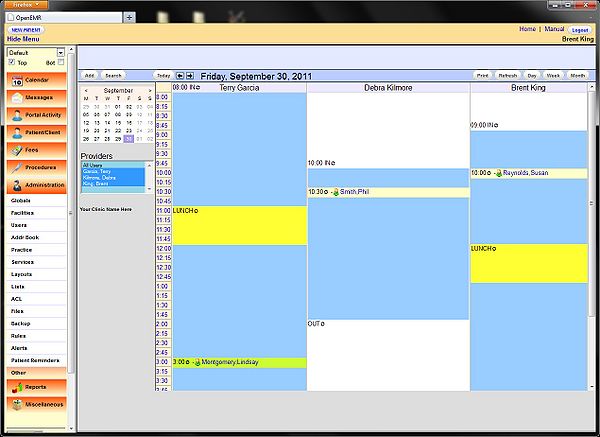
SmileEMR is a comprehensive Electronic Medical Records (EMR) and Patient Management system designed to streamline clinical workflows, enhance patient care, and improve practice efficiency. As a robust and user-friendly platform, SmileEMR offers a range of features and tools to support healthcare providers in managing patient data, scheduling appointments, and tracking medical history.
Main Features of SmileEMR
Some of the key features of SmileEMR include:
- Patient demographics and medical history management
- Appointment scheduling and reminders
- Electronic prescribing and medication management
- Lab results and imaging integration
- Secure messaging and communication tools
Installation Guide
System Requirements
Before installing SmileEMR, ensure that your system meets the following requirements:
| Component | Requirement |
|---|---|
| Operating System | Windows 10 or later, macOS High Sierra or later |
| Processor | Intel Core i3 or AMD equivalent |
| Memory | 4 GB RAM or more |
| Storage | 10 GB available disk space |
Installation Steps
Follow these steps to install SmileEMR:
- Download the SmileEMR installation package from the official website.
- Run the installation executable and follow the prompts.
- Accept the license agreement and choose the installation location.
- Wait for the installation to complete.
Securing Records in SmileEMR
Data Encryption
SmileEMR uses advanced encryption techniques to protect patient data, including:
- AES-256 encryption for data at rest
- SSL/TLS encryption for data in transit
Access Controls
SmileEMR provides robust access controls to ensure that only authorized personnel can access patient data, including:
- Role-based access control
- Username and password authentication
- Two-factor authentication
Export and Migration Tutorial
Exporting Data from SmileEMR
To export data from SmileEMR, follow these steps:
- Login to your SmileEMR account.
- Navigate to the patient record or data you want to export.
- Click on the