What is Tooth Explorer 3D?
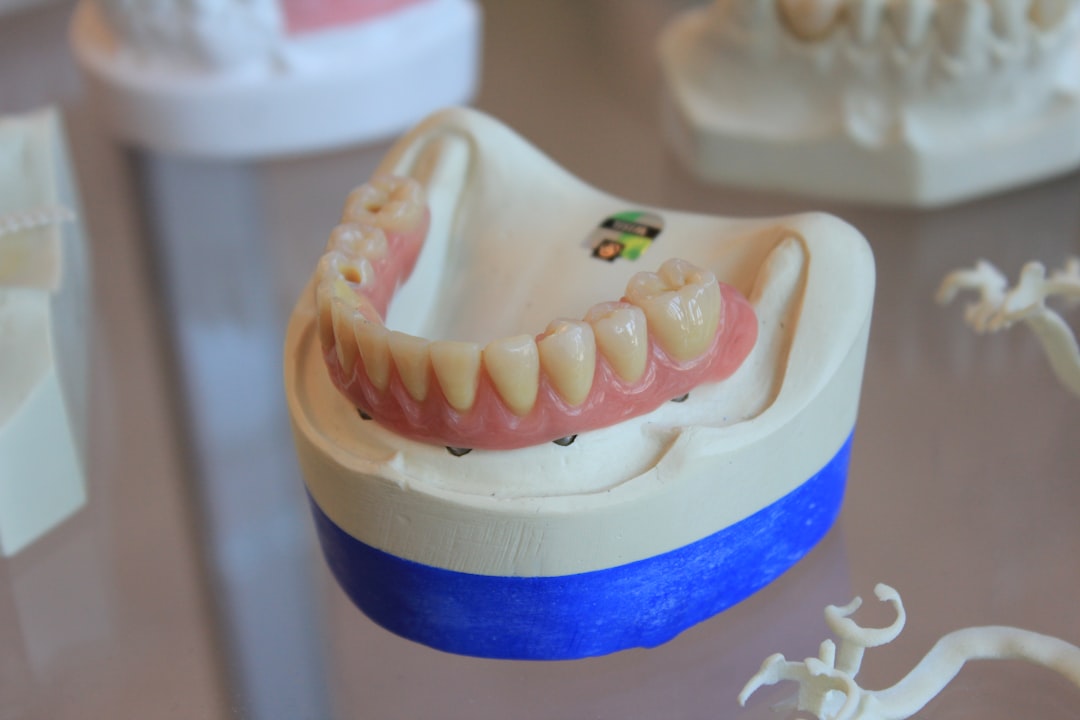
Tooth Explorer 3D is a cutting-edge educational software designed for dental professionals and students. This innovative tool provides an immersive 3D experience, allowing users to explore the anatomy of teeth in unprecedented detail. With Tooth Explorer 3D, users can delve into the intricacies of dental structures, making it an invaluable resource for educational institutions and dental clinics alike.
Main Features of Tooth Explorer 3D
Tooth Explorer 3D boasts an array of features that set it apart from traditional educational materials. Some of its key features include:
- Interactive 3D Models: Explore the anatomy of teeth in stunning 3D, with the ability to rotate, zoom, and dissect models to reveal intricate details.
- Realistic Simulations: Engage with realistic simulations of dental procedures, allowing users to practice and hone their skills in a safe and controlled environment.
- Comprehensive Library: Access a vast library of educational content, including tutorials, videos, and interactive lessons.
Installation Guide
System Requirements
To ensure a seamless installation process, please ensure your system meets the following requirements:
| Operating System | Windows 10 or macOS High Sierra (or later) |
|---|---|
| Processor | Intel Core i5 or AMD equivalent |
| Memory | 8 GB RAM (16 GB recommended) |
| Graphics | NVIDIA GeForce GTX 1060 or AMD Radeon RX 580 |
Installation Steps
Follow these steps to install Tooth Explorer 3D:
- Download the installation package from the official website.
- Run the installer and follow the on-screen instructions.
- Accept the terms and conditions and choose the installation location.
- Wait for the installation to complete.
Troubleshooting Tooth Explorer 3D
Common Issues and Solutions
If you encounter any issues with Tooth Explorer 3D, refer to the following troubleshooting guide:
| Issue | Solution |
|---|---|
| Software not launching | Check for updates, ensure system requirements are met, and try reinstalling. |
| Graphics issues | Update graphics drivers, adjust graphics settings, or try running in compatibility mode. |
Secure Records Guide with Encrypted Repositories
Protecting Sensitive Data
Tooth Explorer 3D prioritizes data security, offering encrypted repositories to protect sensitive information. Follow these steps to ensure your records are secure:
- Enable encryption in the software settings.
- Create a strong password and store it securely.
- Regularly back up your data to a secure location.
Download Tooth Explorer 3D Free and Explore Alternatives
Getting Started with Tooth Explorer 3D
Ready to experience the future of dental education? Download Tooth Explorer 3D free and discover the benefits of this innovative software for yourself. If you’re looking for alternatives, consider the following options:
- Dental Simulator: A comprehensive dental simulation software for students and professionals.
- 3D Tooth Atlas: An interactive 3D atlas of tooth anatomy, ideal for educational institutions.
FAQ
Frequently Asked Questions
Got questions about Tooth Explorer 3D? Find answers to common queries below:
| Q: What are the system requirements for Tooth Explorer 3D? | A: Refer to the installation guide for detailed system requirements. |
|---|---|
| Q: How do I troubleshoot common issues with Tooth Explorer 3D? | A: Consult the troubleshooting guide for solutions to common problems. |